Air Purifier Remote or App Won’t Connect: Troubleshooting
If an air purifier remote is unresponsive, check its batteries and signal path first. If the app will not connect, confirm the purifier supports app control, then check Wi-Fi, phone permissions, and pairing instructions.
If your air purifier remote or app will not connect, start by identifying how that control is supposed to work: a remote may use infrared or radio frequency, while an app may require Bluetooth, Wi-Fi, or both. Check the remote’s batteries and signal path, or confirm the purifier’s network and app requirements before trying to pair it again. Exact steps vary by model, so use the manufacturer’s instructions for pairing and resets.
Check the remote first
Replace or reseat the batteries. Check the polarity markings and make sure the battery contacts are clean and undamaged. Use the battery type specified in the manual.
Check the signal path. If the remote uses infrared, point it toward the purifier’s receiver and clear anything blocking the path. Infrared remotes may not work around corners. Radio-frequency remotes generally do not need direct line of sight, but still need to be paired if the manufacturer requires it.
Try the purifier’s own controls. If its buttons work, the unit has power and the issue is more likely the remote or its pairing. If the panel does not respond either, check the power connection and follow the purifier’s manual before troubleshooting the remote further.
Check whether the remote needs pairing. Follow the model-specific instructions; a pairing sequence for another purifier may not work and could change its settings.
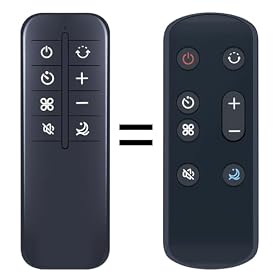
If fresh batteries and the correct signal path do not help, check the remote and purifier for visible damage. A replacement remote is reasonable only if it is listed as compatible with your exact model. If the purifier’s receiver may be damaged, contact the manufacturer or an authorized service provider rather than opening the unit.
Check app, phone, and network requirements
First confirm that your purifier model supports app control and that you have the manufacturer’s correct app. Then check these common connection issues:
Confirm the Wi-Fi band. Some purifiers require a 2.4 GHz network during setup; others support different arrangements. Check the manual rather than assuming. If your router combines network bands under one name, consult its instructions for how to connect a device that requires 2.4 GHz.
Use the required network. Keep your phone and purifier on the network specified by the setup instructions. Guest networks, captive login pages, or some router security settings can prevent device pairing.
Allow the app’s requested permissions. Depending on the phone and setup method, the app may need Bluetooth, local-network, or location access to find the purifier. Review the app and phone settings, and enable only permissions needed for setup.
Check the phone’s connection. Temporarily turn off a VPN if the manufacturer’s instructions recommend it, and make sure the phone has internet access. Keep the phone near the purifier during pairing.
Check the purifier’s status. Make sure it is powered on and in the app’s pairing mode. Indicator lights and pairing steps differ by model.
If the app sees the purifier but cannot finish setup, check the app for a firmware update and verify that the router’s security settings meet the purifier’s requirements. Do not change advanced router settings unless you understand the effect or can restore the original settings.
Product prices and availability are accurate as of the date/time indicated and are subject to change. Any price and availability information displayed on Amazon.com at the time of purchase will apply to the purchase of this product.
Restart and pair again carefully
A simple restart can clear a temporary connection problem. Close the app, unplug the purifier if its manual allows it, wait briefly, then reconnect it and try again. Restart the phone or router only if convenient and safe for your network.
If the purifier still will not appear, remove it from the app and repeat the manufacturer’s pairing steps. Use a factory reset only when the manual recommends it: it may erase saved network details or other settings. Avoid repeated reset attempts if the app reports an account, server, or registration error; check the manufacturer’s support information instead.
Replace a unit when app control is an essential feature
Product prices and availability are accurate as of the date/time indicated and are subject to change. Any price and availability information displayed on Amazon.com at the time of purchase will apply to the purchase of this product.
Decide whether it needs service or replacement
If the purifier’s buttons work but a known-compatible remote still does not, the remote or receiver may need replacement or service. If the unit will not enter pairing mode, repeatedly drops its connection, or fails on a network that meets the manufacturer’s requirements, contact the manufacturer with the model number and the app’s exact error message.
If app control is not supported by your model, troubleshooting cannot add that feature. A replacement unit makes sense only if app control is important and the purifier’s own controls or repair options do not meet your needs. Compare the replacement’s supported app functions and network requirements before buying.
FAQ
Why does my air purifier remote work only when I am close to it?
Weak batteries, an obstructed receiver, or a failing remote can shorten its effective range. Replace or reseat the batteries and clear the path. Infrared remotes usually need to be pointed toward the purifier; check the manual to confirm the remote type.
Does an air purifier app need 2.4 GHz Wi-Fi?
Some models require 2.4 GHz Wi-Fi, while others support different network options. Check the purifier’s manual or app setup instructions for the exact requirement.
Should I reset my air purifier if the app will not connect?
Try the manufacturer’s normal pairing steps and a restart first. Use a factory reset only if the manual recommends it, since it may erase saved network or device settings.
Can I use a universal remote with my air purifier?
Do not assume one will work. Remote compatibility depends on the purifier and remote’s control method. Use a replacement specifically listed as compatible with your purifier’s exact model.